
|
|||||
|---|---|---|---|---|---|

|
|||||
|
|
|||||
|---|---|---|---|---|---|
|
|
|||||


 Popular Articles: |

2'x8' Custom Full Color Vinyl Banners |
• Banner.Foto.com - Improving visibility, brand power and corporate reputation, successful advertising requires visual appeal. With hundreds of amazing templates available, Fotor can help you maximise your next ad campaign with its unparalleled ad designer!
• BannerFans.com - Make banners, showcase your banners for friends to see, share your banners with friends and fans.
• BannerSnack.com - Professional banner creation app for designers and marketers. You can create static, animated HTML5 and interactive banner ads smart and easy.
• BannerAdsCreator.com - With BannerAdsCreator's Free Online Banner Maker, anyone without any banner design skills can still make stunning banner ads and graphics, complete with eye candy text effects, colorful and catchy backgrounds, all in just a few clicks and a couple of minutes.
• FotoJet.com - It is easy to make a banner for the platform you're working on with the free banner maker of FotoJet! There are massive free banner templates, hundreds of clipart images and art fonts to help you create banner designs.
• 123-Banner.com - Within only 60 seconds you can create your own free Flash banner directly here on the website using one of the 123-banner.com templates.
• FlamingText.com - Provides free graphic design tools, all accessible from within a browser - no downloads or installation required. Logos are so easy to create using our very popular Logo Design Tool. It provides access to the largest selection of high quality, easily-customizable logos on the web.
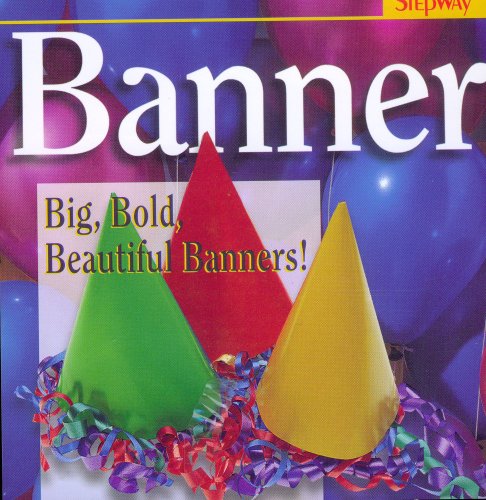
StepWay Banner Software |
• Fotor.com - Bringing your Youtube channel to life, Fotor's amazing Youtube Cover Designer will let you maximize your Youtube experience in new and exciting ways.
• MyBannerMaker.com - a simple, yet awesome, way to create banners for your website, social networking profiles (including FB banners) online advertising or simply for promoting of your business or event.
• CreateBanner.com - Do you need a banner or a social media background for Twitter, Facebook or LinkedIn? Create your own today online for free. No software installation and no previous experience needed.
• Banner-Generator.net - Would you like to get your own promotional banner as image or flash file? Generated online in no time at all - and for free? Then you found one of the best websites to do it!
• WeBesTools.com - Free Animated Banners Maker. This tool let you create gifs animated banner online. With a banner you can make ads and increase your website traffic.
• BannerSketch.com - In just a few minutes you can, without any webdesign knowledge, make your own web banner. Online internet banners can be made with our templates combined with your own banner text lines. Or upload your own images and choose the banner size you like. With a little effort you can make the most beautiful web banner creations.
• BannerBreak.com - a free banner maker where you can quickly and easily generate free banners.
• Create a Banner in Adobe PhotoDeluxe.
Send questions, comments, and suggestions to: catherine@borntolove.com
Born to Love articles are written by Catherine McDiarmid-Watt
Born to Love is a participant in the Amazon Services LLC Associates Program, an affiliate advertising program designed to provide a means for sites to earn advertising fees.
NOTE: All logos, company names, brands, images, trademarks and other intellectual property are the property of their respective owners.
Born to Love is a participant in the eBay Partner Network, an affiliate advertising program designed to provide a means for sites to earn advertising fees by advertising and linking to eBay.com.
Copyright © 1978 - BorntoLove.com - All Rights Reserved.
Last updated - April 5, 2024


